

Hik-Connect Installer Setup & Customer Handover Guide (2026)


UK CCTV installers: if your customer handover ends with "here's the app, here's the password, good luck", you are leaving avoidable callbacks on the table. This guide walks through the full Hik-Connect installer setup for Hikvision NVRs and IP cameras — from enabling Platform Access on the recorder to handing the site cleanly to the customer's Hik-Connect account while keeping installer maintenance permissions. Last updated 18 May 2026.
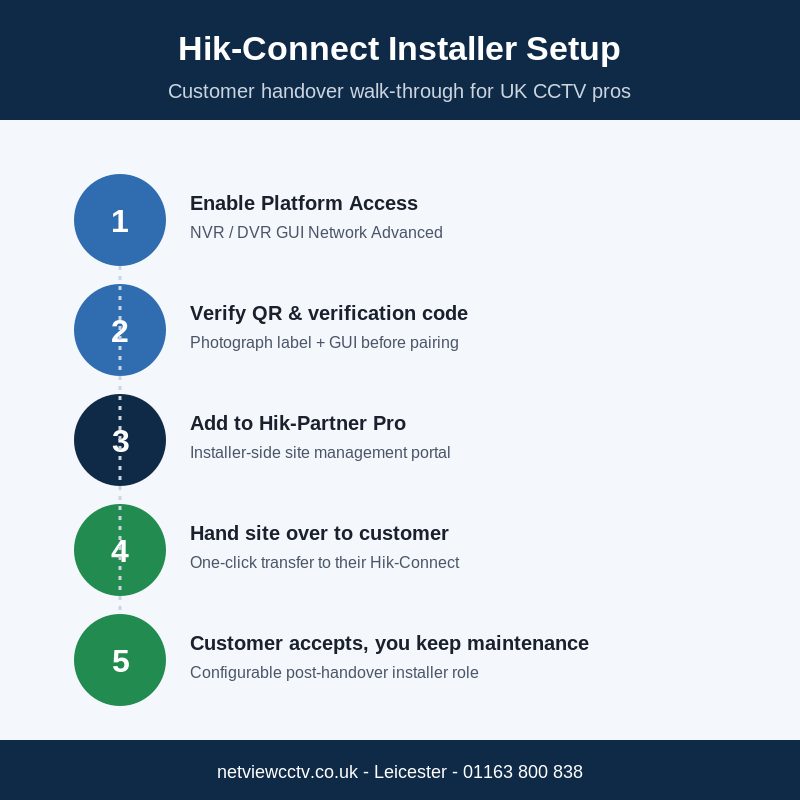
At a glance
- P2P, not port forwards. Hik-Connect uses Hikvision's encrypted P2P cloud so the customer's router does not need 80/443/554/8000 open to the recorder. Enable Platform Access, accept the terms, set a verification code — done.
- Use Hik-Partner Pro on the installer side. Hik-Partner Pro (formerly Hik-ProConnect, renamed 14 October 2022) is the free installer portal that lets you add a device once and then hand the site over to the end customer's Hik-Connect account.
- One-click handover keeps the installer in the picture. When the customer accepts the site, ownership transfers to their Hik-Connect account. You retain a configurable maintenance role so you can still fault-find without holding the keys to live footage.
- Leave a printed handover pack. Verification code, NVR serial, app links, support phone 01163 800 838. That single sheet halves "how do I add this on my new phone" calls a year later.
Why Hik-Connect P2P matters for the customer handover
Hik-Connect is Hikvision's free consumer-facing app and cloud P2P service that lets an end user view their cameras and recorder remotely without any router configuration. For an installer that means no more leaving a customer's router with permanent inbound port forwards just so the homeowner can watch their drive on holiday. Hikvision's own product overview confirms the app "supports peer-to-peer (P2P) cloud service that allows you to enjoy real-time and remote video viewing without complicated network settings" (Hikvision US: Hik-Connect product page).
That matters at handover for three reasons. First, the customer can be set up on their own phone in minutes — you do not need to hand back a router password. Second, the P2P session is encrypted end-to-end and brokered by Hikvision's cloud, which is harder for an opportunistic attacker to pivot through than an exposed port-forward to port 8000. Third, when something does go wrong six months later, you can still help — provided you used Hik-Partner Pro on the installer side instead of just adding the recorder to your personal Hik-Connect account.
Pre-handover checklist before you leave the site
Run this five-item check before you touch the Hik-Connect app — every item closes a known failure mode the installer pickup truck cannot fix from 50 miles away:
- Firmware is current. Check the NVR firmware against the latest stable Hikvision build (see the Hikvision firmware hub for current versions) and update if more than a minor revision behind. Stale firmware is the most common cause of "Hik-Connect offline" tickets.
- NVR has internet. Network → Status → IPv4 default gateway pings. From System → Maintenance → Network Detection the device should resolve
dev.hik-connect.com. - DNS is set to something sensible. If the customer's router hands out odd DNS (some carrier routers do), set the NVR's primary DNS to
8.8.8.8and secondary to1.1.1.1. Hikvision US support flags incorrect DNS as a top-three Platform Access failure mode (Hikvision portal: troubleshooting platform access offline). - Recorder time is correct. NTP enabled, time zone GMT/BST. A drift > 5 minutes will fail Platform Access registration.
- Cameras are added and recording. Verify on local playback before you go anywhere near a phone — Hik-Connect is the wrapper, not the recording engine.
If you are pairing the install with a new recorder, the DS-7608NXI-K1/8P(D)/Alarm4+1 for an 8-camera home or the DS-7716NXI-K4(D) for a 16-camera small-commercial site both ship with Platform Access in the network menu out of the box.
Step 1 — Enable Platform Access on the Hikvision NVR/DVR
Platform Access is the recorder-side switch that registers it with Hikvision's cloud so the Hik-Connect app can reach it without port forwarding. Path on a current Hikvision NVR firmware (GUI 4.0):
- Main menu → System → Network → Advanced → Platform Access.
- Tick Enable. Accept the service terms dialog (Hikvision asks you to acknowledge the data residency notice).
- Confirm Access Type = Hik-Connect and Server Address =
dev.hik-connect.com. This is the production endpoint and is the only entry the app reaches across UK ISPs. - Set the verification code (encryption key). Use a 6-12 character mixed-case alphanumeric — never
ABCDEFor the device's serial. Hikvision US support documents the verification code field in detail (Hikvision portal: where to find the verification code). - Save. The status should flip to Online within 30 seconds. If it does not, see the troubleshooting section below.
Write the verification code down before you leave step 5 — you will need it again at the customer-acceptance step, and the code is not displayed in plaintext after save on some firmware builds.
Step 2 — Verify the device QR code and verification code
Every current Hikvision NVR, DVR, and standalone IP camera prints a unique QR code on a label on the device, on the box, and in the GUI under Configuration → Network → Advanced → Platform Access. That QR code encodes the device's serial number and a check digit — it is what the Hik-Connect app scans during pairing. Hikvision Canada documents the manual-entry fallback for sites where the label is unreachable (Hikvision Canada PDF: adding by serial number and verification code).
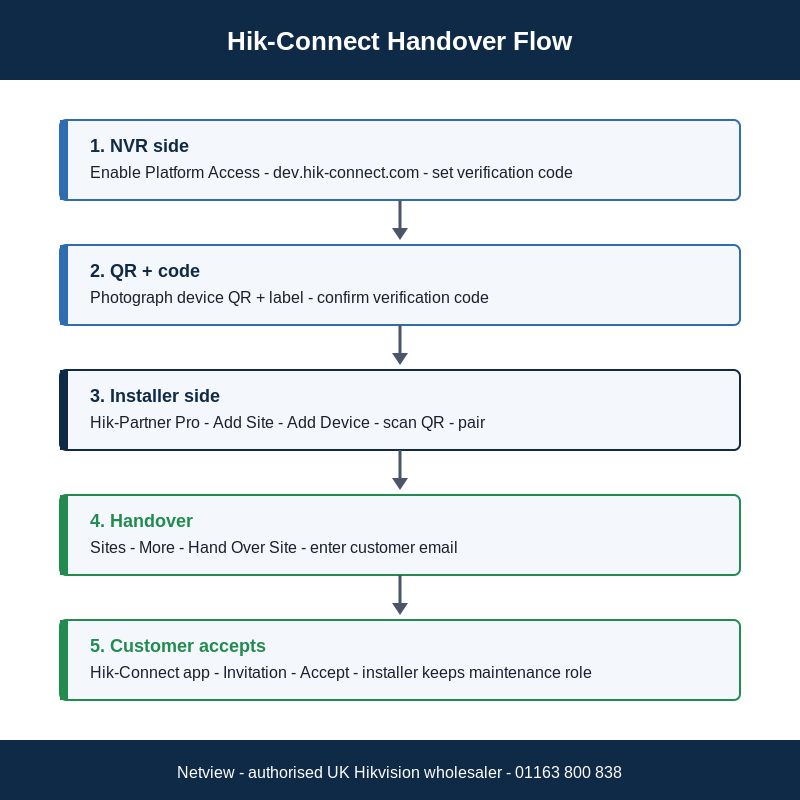
Before you put the QR code in front of your phone, photograph it on the device label and in the GUI. That photo is your fallback if the customer's QR sticker peels off in three years' time — the serial number plus the verification code is all the Hik-Connect manual-entry flow needs.
Step 3 — Installer-side: add the device to Hik-Partner Pro
Hik-Partner Pro (formerly Hik-ProConnect) is Hikvision's free installer portal. It is the right place to add the device — not your personal Hik-Connect account — because it cleanly separates the installer's role from the end user's, and it carries the one-click handover that the Hik-Connect mobile app does not. Hikvision's global product page describes Hik-Partner Pro as a service to "remotely manage a single device (Personal Mode) or the whole security system (Teams Mode), and provide maintenance on Hik-Connect" (Hikvision Global: Hik-ProConnect).
Walk-through:
- Open the Hik-Partner Pro app on your installer phone (or the web portal at ieu.hik-proconnect.com for EU accounts).
- Sites → Add Site. Name it the customer's address or company name. Add the customer's contact email — you will need it to invite them at the handover step.
- Under the new site, Add Device → Scan QR Code. Scan the NVR's QR code from step 2.
- When prompted, enter the verification code you set in step 1. The device should bind to the site within 30 seconds.
- Add the rest of the system — cameras (the DS-2CD23166G3-IS2UY/SL(2.8MM) 16MP turret, DS-2CD2347G3-LI2UY(2.8MM) Smart Hybrid Light turret, etc.) typically auto-discover under the parent NVR; door stations like the DS-KV6114-WBE1 and indoor monitors like the DS-KH8381-WTE1 add as their own devices via QR.
Adding the install to Hik-Partner Pro instead of your personal Hik-Connect account is the single highest-leverage thing you can do at handover — it is what makes step 4 a one-tap action rather than a frustrating dance of "share device" permissions in the consumer app.
Step 4 — Hand the site over to the customer's Hik-Connect account
Hik-Partner Pro's handover function transfers ownership of the site (and every device under it) to the end customer's Hik-Connect account, while leaving you with a defined maintenance role. From the Hik-Partner Pro portal: Sites → [Customer site] → More → Hand Over Site. Enter the customer's Hik-Connect-registered email address or phone number.
Hikvision UK's official process document describes the handover as "hand over devices & sites to the End User's Hik-Connect Mobile Client" and notes that the installer keeps a configurable post-handover role for ongoing maintenance (Hikvision UK PDF: ProConnect handing over and permissions). Before you tap Send, decide what permissions you want to retain — typical options are Configuration, Live View, Playback, and Health Monitoring. For most domestic handovers we recommend Configuration + Health Monitoring only; you want to be able to push a firmware update and see the recorder's online status, you do not need the customer's family-life playback on tap.
Step 5 — Customer-side acceptance and Hik-Connect app pairing
The customer downloads Hik-Connect from the App Store or Google Play and creates a free account using the same email or phone number you entered at step 4. On first log-in they will see an Invitation badge — tap, accept, done. Every device under the site appears under More → Sites with full live-view and playback rights.
If the customer prefers to skip the site/handover flow entirely — common for self-managed small installs — they can add the recorder directly via QR code. From the Hik-Connect home screen: + → Scan QR Code → scan the NVR QR → enter the verification code → Add. In that flow the customer becomes the device owner immediately and the installer adds themselves via the customer's "Share Device" function afterwards. The handover route is cleaner and is what we recommend.
If the customer is migrating from an older Hik-Connect install or has another device on the account already, point them to our setup hub: Hik-Connect setup, migration & troubleshooting guide covers app-version migrations, family sharing, and the "device already added to another account" unbind procedure.
Retaining maintenance permissions after handover
The handover does not have to be all-or-nothing. Hik-Partner Pro lets you set a post-handover installer role with granular permissions:
| Permission | Recommended for domestic | Recommended for commercial |
|---|---|---|
| Configuration | Yes | Yes |
| Live View | No (privacy) | Yes (incident response) |
| Playback | No (UK GDPR) | Yes (with DPA addendum) |
| Health Monitoring | Yes | Yes |
| Firmware update | Yes | Yes |
The "no Live View / no Playback for domestic" line is a Netview UK GDPR recommendation, not a Hikvision policy. The installer does not need a household's footage on tap; they need to be able to push a firmware revision and see whether the recorder dropped off the cloud at 3 a.m. If you do need playback access for a commercial site, fold it into the data-processing addendum on the customer's maintenance contract.
Port forwarding vs P2P — when to add port forwards anyway
P2P removes the need for inbound port forwarding for the Hik-Connect app, but there are three installer scenarios where you still might add port forwards on the customer's router:
- iVMS-4200 desktop client for the customer's office PC. The desktop iVMS-4200 client can talk to the NVR over Hik-Connect's cloud relay, but performance for a 16-camera live wall is better with a direct LAN/WAN connection. See our iVMS-4200 v3.14 update guide for the current desktop client behaviour and the iVMS-4200 hub for the broader setup workflow.
- VMS integration. If the customer's chosen VMS (Milestone, Genetec, Hik-Central) sits in a head-office network and the NVR is in a branch site, you need a direct route to ports 80, 554 or 8000 — P2P does not expose an ONVIF or SDK socket the VMS can pull frames from.
- Customer's ISP is double-NAT or CGNAT. Some UK rural and 4G/5G fixed-wireless ISPs put customers behind CGNAT, which breaks P2P UDP hole-punching. Symptoms: Platform Access shows Online on the recorder but the Hik-Connect app sees Device Offline. Workaround is either to request a public IP from the ISP or to use a Hik-Connect-compatible router (an OpenVPN site-to-site is the more robust fix).
For the standard 99% case — domestic installs, small office, fibre or VDSL with one router, no double-NAT — you can leave ports 80/443/554/8000 closed and the customer's app will work fine.
Common Hik-Connect handover problems (and fixes)
Eight problems cover most of the support calls we field after handover. The fixes are all installer-doable in under 10 minutes, most of them remotely via the device's web GUI once you have your Hik-Partner Pro maintenance role.
- "Device Offline" but the recorder has internet. Re-test Platform Access with Test in the NVR's Network → Advanced → Platform Access page. If it fails, set DNS to 8.8.8.8 / 1.1.1.1 and retry. Hikvision US support documents this as the most common cause (Hikvision portal: troubleshooting platform access offline).
- "Wrong verification code" on customer's first add. The verification code is case-sensitive and is the encryption key, not the device login password. Have the customer key it in lower-then-upper rather than copy-pasting from a sticker that may have a typo.
- "Device already added to another account." Probably the previous installer's personal Hik-Connect account. Walk through the Hik-Connect hub guide's unbind procedure — Hikvision support can release it with proof of purchase.
- Push notifications missing. Customer has not enabled Event Notifications in the Hik-Connect app, or the recorder has not enabled Notify Hik-Connect on the relevant event types under Event → Linkage.
- Live View drops after 30 seconds. Customer is on cellular and the data session is throttled. Switch to Wi-Fi or check whether their mobile MNO has UDP throttling — Hik-Connect P2P prefers UDP.
- Playback works on Wi-Fi but not 4G. Cellular bandwidth caps the stream. Switch the camera to a lower sub-stream profile (e.g. 1MP @ 1Mbps) and reattempt — the iVMS-4200 hub guide covers sub-stream tuning in detail.
- "Two-way audio not working" from a video intercom. The DS-KV6114-WBE1 door station and DS-KIS613-S kit need Microphone and Speaker permissions granted to the Hik-Connect app on the customer's phone.
- Customer phone update wiped Hik-Connect. Re-install the app, log back into the existing account — the site, devices and history are all stored cloud-side, not on the phone.
What to leave with the customer (handover pack)
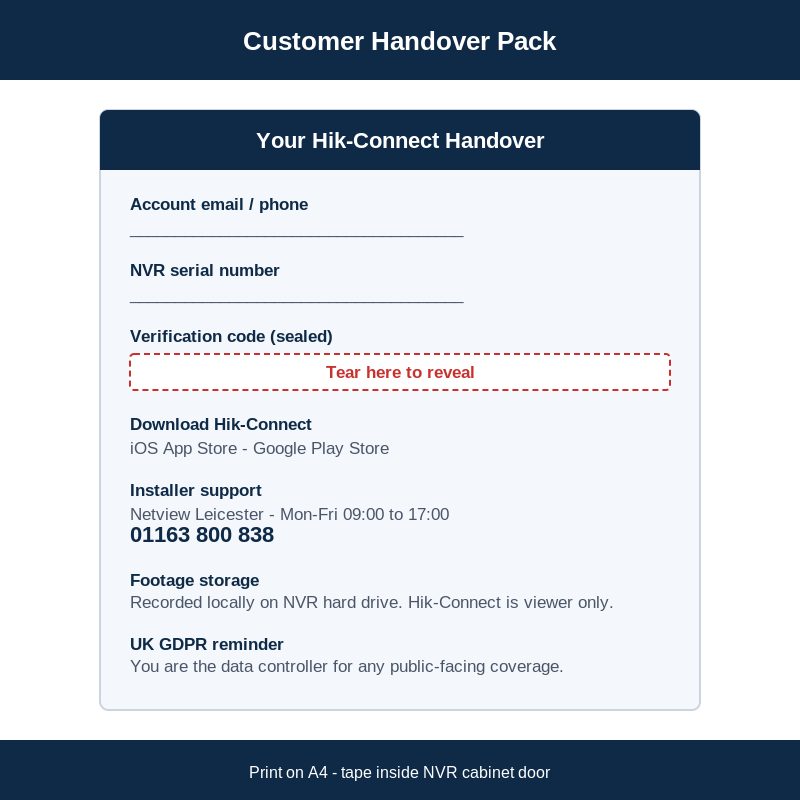
Print one A4 page and put it in a clear envelope on the back of the NVR cabinet door. The pack closes the loop on the calls we hear most often six months down the line:
- Hik-Connect account email / phone the system was handed over to.
- NVR serial number (top sticker, bottom sticker, and GUI Configuration → System → Device Info).
- Verification code (sealed under a "tear here" so it is not in plain sight on the cabinet door).
- iOS / Android download links for Hik-Connect — QR codes are fine.
- Installer support contact: Netview Leicester 01163 800 838, sales@netviewcctv.co.uk, Mon-Fri 09:00-17:00.
- Note that footage is recorded locally to the NVR's hard drive, not in the cloud. Hik-Connect is the viewer, not the storage.
- UK GDPR signage reminder if the system covers any public-facing area — the customer is the data controller once the site is handed over.
Where this slots into the wider Hikvision installer toolkit
Hik-Connect is the customer-facing wrapper; the rest of the Hikvision ecosystem still sits under the installer's bench. For desktop multi-site monitoring, install the latest iVMS-4200 client and pair it with the Hik-Partner Pro account so site lists sync automatically. For firmware patching, check the Hikvision firmware hub before quarterly maintenance visits. For Network camera discovery, password reset and bulk config, the Hikvision Tools Hub collects SADP, Batch Configuration and the Hikvision Diagnostic Tool. And if your customer is moving from CCTV-only to a video intercom in the same handover, our Hikvision TalkVu installer guide covers the door-station and indoor-monitor stack that mounts on the same Hik-Connect account.
FAQ
Does Hik-Connect require port forwarding on the customer's router?
No. Hik-Connect uses Hikvision's encrypted P2P cloud, so the customer's router does not need 80, 443, 554 or 8000 forwarded inbound. Port forwarding is only required for direct LAN/WAN access via iVMS-4200 desktop or VMS integration.
What's the difference between Hik-Connect and Hik-Partner Pro?
Hik-Connect is the free end-user app; Hik-Partner Pro is the free installer portal. Hik-Partner Pro lets the installer add devices once, manage multiple customer sites, and hand each site over cleanly to the customer's Hik-Connect account with a configurable maintenance role retained.
Can a customer add a recorder to Hik-Connect without the installer involved?
Yes — the customer can use + → Scan QR Code in the Hik-Connect app, enter the verification code, and become the device owner immediately. The cleaner installer route is to add the device to Hik-Partner Pro first and then hand the site over.
What's the recommended verification code policy?
6-12 characters, mixed case alphanumeric, not the serial number, not the device password. Treat it as the encryption key it is — it is the only thing protecting the device's P2P session from someone who has scanned the QR code.
Can I keep maintenance access after handover?
Yes. The Hik-Partner Pro handover lets you retain a configurable role — Netview recommends Configuration + Health Monitoring + Firmware update only for domestic installs, and adds Live View + Playback for commercial sites covered by a data-processing addendum.
What if the recorder shows Online in Platform Access but the app says Offline?
Most commonly the customer's ISP is using CGNAT (carrier-grade NAT) which breaks P2P UDP hole-punching. Test by tethering the recorder to a mobile hotspot — if the app sees it from a different network, CGNAT is the cause. Ask the ISP for a public IP, or fall back to a site-to-site OpenVPN.
Do I need a Hik-Partner Pro account or can I just use my own Hik-Connect?
Technically you can use your own Hik-Connect — but you will hit the device share permission limits as you grow, and the handover step in this guide does not exist in the consumer app. Hik-Partner Pro is free; sign up at ieu.hik-proconnect.com for an EU account.
Talk to Netview about your next Hik-Connect handover
Netview is a Hikvision authorised UK wholesaler based in Leicester. We stock the full Hikvision Pro AcuSense NVR range, IP cameras, and TalkVu video intercom stack — all with Hik-Connect Platform Access enabled out of the box. Trade installers can call us on 01163 800 838 Mon-Fri 09:00-17:00, or browse the full Hikvision range at netviewcctv.co.uk/brands.


About the Author


