

Complete Hikvision iVMS-4200 Installer Guide 2026: Setup, Devices, Storage & Migration


Hikvision's iVMS-4200 is the free Windows/macOS client most UK installers reach for to commission, monitor and hand over CCTV systems. It works against virtually every Hikvision NVR, DVR, IP camera, intercom and access controller, and at the V3.14 build it now ships with AcuSearch and AcuSeek, privacy-mosaic playback and a faster device-add flow. This is the long-form installer guide we ship to engineers in the van — what iVMS-4200 actually does, how to set it up cleanly, how to add devices three different ways, when to move a client to Hik-Central Professional, and the troubleshooting steps for the issues that come up most on UK sites.
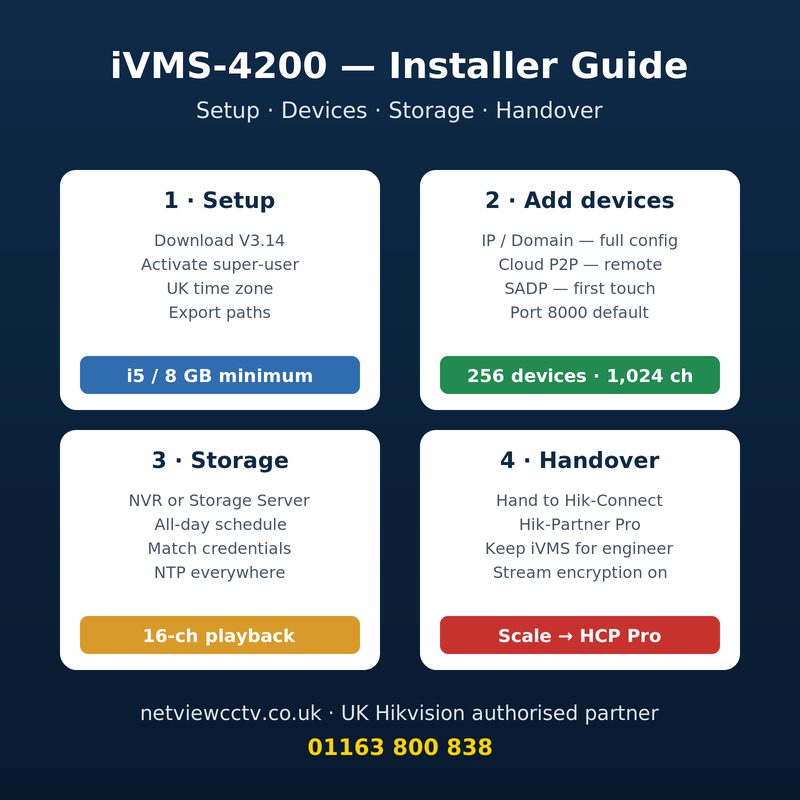
At a glance
- What it is: Hikvision's free desktop client for monitoring, managing and configuring Hikvision NVRs, DVRs, IP cameras, intercoms and access controllers from a Windows or macOS PC.
- Current version: V3.14.0.6_E on Hikvision Global; V3.13.2.5_E is the parallel US-region build. V3.13 introduced AcuSeek natural-language video search.
- Capacity: 256 encoding devices, 1,024 channels, 64-channel live view, 16-channel synchronous playback — on a single PC.
- Minimum spec: Intel Core i3, 4 GB RAM, Windows 10/11 (32-bit or 64-bit) or macOS. We recommend i5/8 GB minimum and i7/16 GB for 32+ cameras with continuous recording to a Storage Server.
- When to step up to Hik-Central Pro: multi-site, 200+ devices, multi-user with role-based access, health monitoring or AI analytics — iVMS-4200 caps at one client, 256 devices and basic logging.
- Best for: single-site commissioning, small/medium domestic and commercial sites, customer demo and handover workflows. Hand the end user off to Hik-Connect rather than installing iVMS-4200 on a customer's PC.
What iVMS-4200 is — and who should be running it
iVMS-4200 is Hikvision's free single-client video management software (VMS) for Windows and macOS. One installation manages live view, playback, e-map, event centre, access control, intercom, attendance and ANPR data — all from one PC. The Mac build covers live view, playback, e-maps and alarms but drops the access-control and intercom modules. Hikvision Global lists V3.14.0.6_E as the current Windows release; Hikvision US ships V3.13.2.5_E as the regional parallel.
For installers, the headline jobs are commissioning new sites (activating cameras, setting passwords, pushing configuration), demonstrating the system to the customer at handover, and reaching back into a system later for diagnostics. For end users, iVMS-4200 is overkill — most domestic and small commercial customers want Hik-Connect on their phone, not a desktop VMS. Our handover workflow is documented in the companion Hik-Connect installer setup & customer handover post.
System requirements and what they mean in practice
Hikvision's stated minimum is an Intel Core i3, 4 GB RAM, and Windows 10/11 in 32-bit or 64-bit, or a current macOS build. That gets iVMS-4200 to open and add a handful of devices, but it does not absorb a busy 64-channel live-view wall plus simultaneous playback. Hikvision's own iVMS-4200 system requirements sheet notes the 1,024-channel total limit with 256 encoding devices and 64 decoding devices, 64-channel live view, and 16-channel playback. In the field we recommend:
- Up to 16 cameras, single site: Intel Core i5 (8th gen or later), 8 GB RAM, integrated graphics OK, SSD for the OS.
- 16-32 cameras, continuous recording via Storage Server: Intel Core i7, 16 GB RAM, discrete GPU (NVIDIA GTX 1650 or better), separate HDD for storage.
- 32+ cameras or 4K/8MP streams: Core i7/i9, 16-32 GB RAM, dedicated GPU, NVMe OS + HDD storage. At this scale, ask whether Hik-Central Professional is the better fit.
iVMS-4200 is licence-free for non-commercial control-room use and runs offline. The licensable HikCentral platforms (Pro / Workstation / Cloud) sit above iVMS-4200 for sites that outgrow it.
Step-by-step installation, activation and first-time settings
Every fresh install on a new commissioning laptop should follow the same sequence so site engineers do not invent their own variations:
- Download from Hikvision direct. Always pull the installer from the Hikvision Global download page (or the US-regional page if your firmware aligns with that build). Avoid third-party mirrors — they are routinely behind the current version and have been used to bundle adware.
- Run the installer as Administrator. The installer offers a custom path; we keep it on the default C:\Program Files\iVMS-4200\ so support docs and ticket screenshots stay portable.
- First-run password. On launch, the client asks for a super-user password — this is the iVMS-4200 super-user, not the device password. Set a strong, unique password and record it in your password manager. Choose "Auto-login" only on machines that never leave the office.
- Time and language. Under Maintenance and Management > System Configuration, set the time zone explicitly to (UTC+00:00) Dublin, Edinburgh, Lisbon, London and tick "Adjust clock for daylight-saving time". UK summer time drifts are the most common cause of "no playback found" complaints from end users on returning sites.
- Storage paths. Pre-create folders for log export, picture export and video clip export on a non-system drive — and configure them under Tool > System Configuration > File. The Public Pictures / Documents folders fill the C: drive on busy commissioning laptops within weeks.
- Account separation. Add a second iVMS-4200 user account with Operator role for site visits — keep the super-user for office configuration changes only.
The full client user manual is on Hikvision's documentation portal; the in-app help has the same content cross-referenced to the live menus.
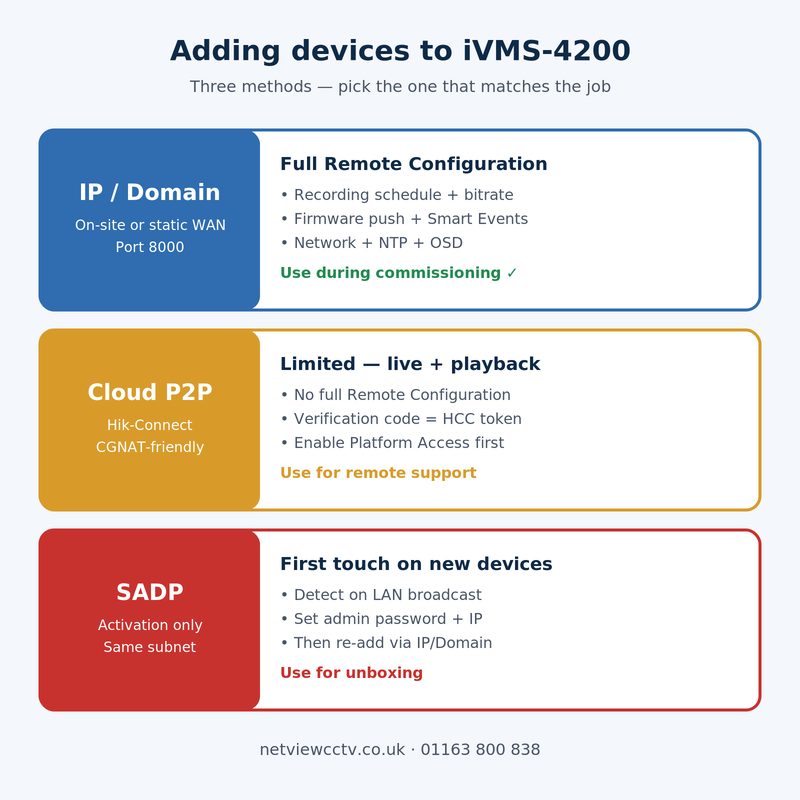
Adding devices: IP/Domain vs Cloud P2P vs SADP
iVMS-4200 supports three device-add modes and they are not interchangeable on commissioning day. Picking the right one keeps the rest of the workflow simple.
| Method | When to use | Configuration access | Caveats |
|---|---|---|---|
| IP/Domain | On-site commissioning over LAN, or remote sites with a static WAN IP / DDNS hostname and port-forwarding | Full — Remote Configuration menu is enabled | Default service port 8000; activate Stream Encryption (TLS) on remote sites to avoid sniffing |
| Cloud P2P (Hik-Connect) | Remote troubleshooting via your installer Hik-Connect account, or supporting customer-owned NVRs over CGNAT links | Limited — live, playback, basic settings only; full Remote Configuration is blocked over P2P | Enable Platform Access on the device first; verification code is the device's HCC token — record it |
| SADP discovery | First-touch on a brand-new device that has not yet been activated or had an IP set | Activation only — set admin password and base IP, then re-add via IP/Domain | PC and device must be on the same subnet; one-touch hotspot or laptop direct-attach is fastest |
Hikvision's official "adding a device manually" PDF documents the IP/Domain flow; the "Add a Hik-Connect P2P device to iVMS-4200" PDF covers the Cloud P2P route. The trap to avoid: a device added by P2P shows up in iVMS-4200 but the Remote Configuration cog is greyed out. Anything that needs full config (firmware push, recording schedule, video parameters, network settings) has to come in on IP/Domain.
For first-touch on unboxed cameras, run SADP on the laptop while the camera is on the same subnet — typically a managed switch with a single VLAN, or the laptop direct-plugged to a Reyee or Hikvision PoE switch. SADP detects, activates and lets you write a new IP. After activation, drop the device into iVMS-4200 by IP/Domain to commission it properly. Note: SADP is a separate small utility on the Hikvision Tools hub, not built into iVMS-4200 itself.
Live View, Playback and the Event Centre
Live view is grouped — drag the cameras you want monitored side-by-side into Custom Groups, save a 1/4/9/16/32/64 layout, and assign it as the default for the operator account. The Playback module supports 16 channels synchronously with privacy-mosaic redaction in V3.13 and later, smart-search filters for human/vehicle only (AcuSense devices), and target-image export. The Event Centre aggregates live and historical alarms — point your Pro / VPRO AcuSense NVRs at iVMS-4200 as an alarm host and you get a single pane for false-alarm review across all sites.
Where iVMS-4200 differentiates from Hik-Connect is depth — it exposes full Remote Configuration on devices added by IP/Domain, including bitrate, frame rate, smart-event rules, OSD overlays, network settings, time configuration, NTP and firmware upgrade. For most commissioning tasks, this is the screen you live in.
Storage Server: when to use it and how to set it up
Storage Server is an optional iVMS-4200 component that turns the PC into a NAS-style recorder for IP cameras when there is no NVR on site, or when a customer wants 30+ day retention beyond what the NVR's bays can hold. It mounts physical disks under the iVMS Storage Server service and records 24/7 or by schedule to a partition you allocate. In practice the configuration is straightforward but unforgiving:
- Install Storage Server from the iVMS-4200 installer (separate component checkbox).
- Add the Storage Server as a device in Device Management — it appears as a separate "Storage Server" device type.
- Remote Configuration > Storage > General — initialise the chosen disk/partition; the status must read Normal or recording fails silently.
- For each camera, Storage Schedule > Storage Server > All-day Template (or a custom schedule).
- Under Live View > Playback Settings, set Search Video File Stored In = Storage Server so playback queries the server rather than the camera SD card.
The two issues that cause "footage disappears after reboot" tickets are an unallocated/uninitialised partition and a mismatch between the iVMS super-user credentials and the Storage Server user credentials. Set the same admin password across the iVMS super-user, the Storage Server user and the camera-side recording account; the per-camera Net SDK login fails silently otherwise.
V3.14 highlights — AcuSeek, AcuSearch and the playback uplift
V3.14 is an incremental polish over the V3.13 release of May 2025 — the big shift was V3.13 itself, which added AcuSeek alongside the existing AcuSearch. AcuSearch classifies clips by human/vehicle/face and groups them under the Smart-Event tab. Hikvision's V3.13.0 release notes add AcuSeek — a natural-language video search where the operator types a sentence like "a man in a yellow jacket carrying a parcel near the loading bay" and the client returns matching clips ranked by similarity, with playback, advanced filters and target-image export. AcuSeek-capable devices are flagged "VPRO" in the SKU — the DS-7608NXI-I2/8P/VPRO, DS-7616NXI-I2/16P/VPRO and DS-7732NXI-I4/16P/VPRO are the volume sellers for that capability.
Other operator wins shipped between V3.12 and V3.14: privacy-mosaic playback, human/vehicle-only video clip download, batch time-based download, drag-any-camera-anywhere on the full-screen wall, and timeline-on-thumbnails playback. For a deeper version-by-version breakdown see our dedicated iVMS-4200 V3.14 update guide.
iVMS-4200 vs Hik-Connect vs Hik-Central Professional
Three Hikvision platforms cover three different jobs. The decision matrix below is what we use to recommend the right one to UK installers.
| Feature | iVMS-4200 | Hik-Connect | Hik-Central Professional |
|---|---|---|---|
| Cost | Free | Free | Licensed per channel + per feature |
| Platform | Windows / macOS desktop | iOS / Android / web | Windows Server + Web/Mobile/Control Client |
| Clients per server | 1 (one PC = one client) | N/A (cloud) | Up to 200 control/mobile clients |
| Devices supported | 256 encoding devices, 1,024 channels | Bound by account | 1,024 devices, 3,000 channels |
| Multi-user with roles | Local users only, basic permissions | Shared accounts | Full RBAC, AD/LDAP integration |
| Health monitoring | Basic log search | Device-online indicator only | Full health monitoring + audit trail |
| AI analytics & reporting | AcuSearch/AcuSeek over compatible devices | Smart Event push only | People counting, queue, heat-map, ANPR, face — with reporting |
| Maps | E-map only | No map module | E-map + Google/OSM geographic |
| Best for | Commissioning, single-site control room, demo / handover | End-user phone viewing, remote installer support | Multi-site, multi-user enterprise deployments |
Hikvision's own HikCentral free vs full feature comparison details which HCP modules unlock at which licence tier; HCP v3.0 release notes are useful when a customer is weighing the upgrade.
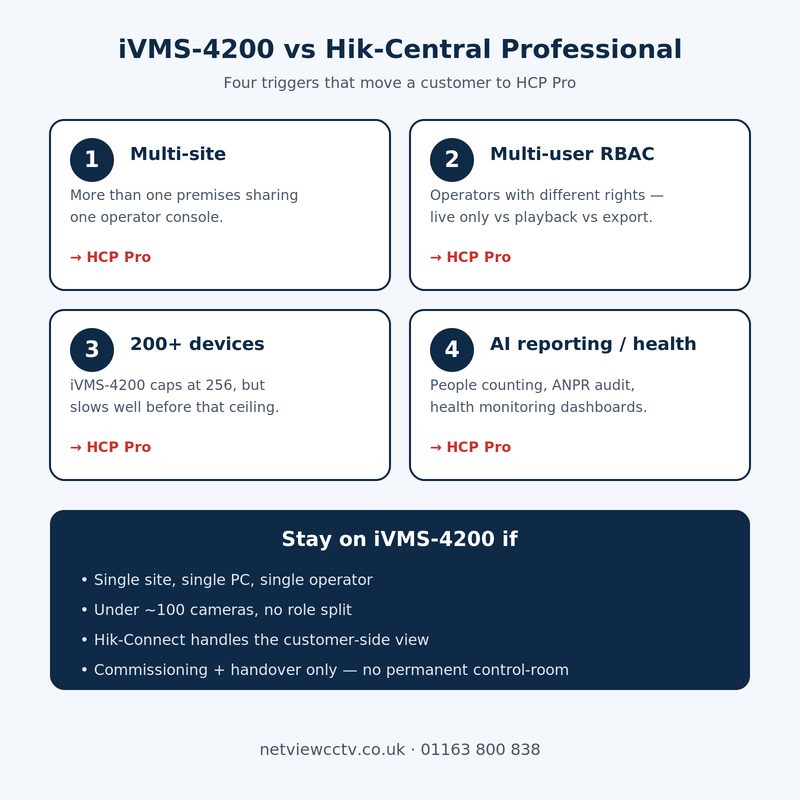
When to migrate from iVMS-4200 to Hik-Central Professional
iVMS-4200 is a single-client tool — one PC, one logged-in operator, one site. If any of the following apply, it is time to scope HCP Pro:
- Multi-site: the customer has more than one premises and wants one operator console covering all of them. iVMS-4200 will technically add cameras from multiple sites, but the operator cannot share that view with anyone else without RDP or screen-sharing.
- Multi-user with role-based access: control rooms with multiple operators, or businesses that want a director to view live but not retrieve playback, need real RBAC. iVMS-4200's local user model is too coarse.
- Device count: approaching 200 encoding devices or 800+ channels — performance gets noticeably worse on iVMS-4200 even on i7/32 GB hardware.
- Health monitoring: customers (especially retail and logistics) increasingly want a "every camera is up" dashboard. HCP Pro Health Monitoring is the right tool; iVMS-4200 only has log search.
- AI reporting: people counting reports, queue-time SLA breaches, ANPR allow-lists with audit — features the camera can output but iVMS-4200 cannot collate.
Migration is not a single-button job — devices, schedules, user accounts and storage targets re-create on the HCP server, and historical iVMS-4200 footage stays where it was recorded (NVR HDDs or Storage Server). Plan a parallel-run window of 2–4 weeks where both run alongside, then cut iVMS-4200 down to a commissioning tool only.
Common iVMS-4200 troubleshooting
The same five issues drive the bulk of support tickets we see — most are platform-side, not device-side.
| Symptom | Likely cause | Fix |
|---|---|---|
| Device shows "Offline" but pings fine | Port 8000 blocked by Windows Firewall or the device's service port has been changed | Allow iVMS-4200.exe in Windows Defender Firewall inbound + outbound; verify device's HTTP/Service port via SADP |
| "Platform Access offline" on the NVR's status screen | Hik-Connect verification code mismatch or DNS resolution failure for litedev.hik-connect.com | Reset the verification code, confirm DNS is reaching public resolvers, switch ISP-provided DNS to 1.1.1.1 or 8.8.8.8 (per Hikvision US support) |
| No playback returned, "no video file found" | PC clock skew vs device clock, or wrong time zone on either side | Force both PC and device to NTP (time.windows.com / pool.ntp.org); set time zone to UTC+0 London with DST flagged |
| Storage Server recordings disappear after reboot | Partition not initialised or Storage Server user credential mismatch with the camera | Re-initialise the HDD in Storage Server > Storage > General; match admin credentials across iVMS user, Storage Server user and camera (per the use-IP community thread on storage-server reboots) |
| Live view freezes on more than 16 streams | CPU or GPU saturation — decoding 16+ 4K streams on integrated graphics will not work | Switch live view to sub-stream for non-focus tiles; enable hardware decoding under Tool > System Configuration > Image |
| Cannot add device by P2P, code valid | Device's Hik-Connect / Platform Access service not enabled, or the verification code on the device differs from what the customer gave | On the device — System > Network > Platform Access — set service to Hik-Connect, tick Enable, set a unique 6-char verification code, save |
For the deeper Hik-Connect side of platform access, the dedicated Hik-Connect setup & troubleshooting hub is the next stop. The Hikvision US "platform access offline" article covers the device-side checks in detail.
Integration with Hik-Connect, Hik-Partner Pro and firmware management
iVMS-4200 is the desktop side of a three-tool installer ecosystem. Hik-Connect is the customer-facing mobile app; Hik-Partner Pro (the rebranded Hik-ProConnect from October 2022) is the installer's multi-site portal for managing customer accounts and performing the handover step; iVMS-4200 is the engineer-side desktop for configuration, commissioning and bulk firmware push. The three accounts don't share databases, but they reference the same devices — your Hik-Partner Pro site list and your iVMS-4200 device list will look similar but lag each other slightly during a commissioning sweep.
For bulk firmware updates, iVMS-4200's Maintenance and Management > Device Upgrade screen accepts multiple devices and a firmware file at once — sensible for refreshing 8-16 cameras to the same release. For the underlying firmware index by series and quirks per release, our Hikvision firmware download hub is the single source of truth. For the smaller utilities — SADP, Batch Config, Password Reset Tool, Player — see the Hikvision Tools hub.
UK installer best practices for iVMS-4200
The principles that keep iVMS-4200 working cleanly across a commissioning fleet:
- One installer laptop per engineer, named. Don't share the same iVMS-4200 install across multiple engineers — the device list, encrypted password cache and saved e-maps are per-PC.
- Don't install iVMS-4200 on a customer's PC. Hand the customer over to Hik-Connect mobile or a kiosk-style Hik-Connect on Windows. iVMS-4200 exposes too much device-level configuration to a non-technical operator.
- Keep V3.x current. V3.13 / V3.14 added AcuSeek + AcuSearch and tightened TLS — older builds will still work but lose the smart-search workflow most engineers now expect.
- Stream encryption on Wi-Fi. When commissioning over a site Wi-Fi, enable Stream Encryption on the camera and the iVMS client — the live preview gets a slightly higher CPU cost in exchange for not broadcasting clear-text H.265 across the air.
- Don't recycle the admin password. One admin password per device is a sniff-once-pwn-many vector. The iVMS-4200 device-import CSV makes per-device passwords trivial, and the password manager is one click away.
- GDPR is on the installer too. iVMS-4200 retains operator login logs, image exports and clip exports on the laptop. Treat the commissioning laptop as a personal-data device — full-disk encryption, screen-lock under 5 minutes, and a clean-uninstall procedure when an engineer leaves the company.
For the NVR-side hardware planning that pairs with iVMS-4200, see our AcuSense NVR sizing guide and the DS-7716 vs DS-7732 NXI K4 comparison. The full AcuSense camera pillar is the Hikvision AcuSense installer guide.
Frequently asked installer questions
Is iVMS-4200 free for UK installers and end users?
Yes. iVMS-4200 is free for both installers and end customers. Hikvision does not licence it per channel or per device. The chargeable HikCentral platforms sit above iVMS-4200, not under it.
Does iVMS-4200 run on Windows 11?
Yes, both 32-bit and 64-bit Windows 11 are supported, per Hikvision's published system requirements. macOS is supported with a feature subset — live view, playback, e-map and alarms — but no access control or intercom.
How many cameras can iVMS-4200 manage on one PC?
Up to 1,024 channels across 256 encoding devices, with 64-channel live view and 16-channel synchronous playback. In practice, 32 cameras on an i5/8 GB PC, or 64+ cameras on an i7/16 GB PC, is the sensible working ceiling before HCP Pro becomes the better fit.
Should I install iVMS-4200 on a customer's reception PC for live view?
Not as the long-term answer. iVMS-4200 exposes Remote Configuration, recording schedule, firmware upgrade and device-add to whoever is sitting at the PC. Use a dedicated control-room PC if the customer wants desktop live view; otherwise hand over to Hik-Connect on phone or to a kiosk-style read-only deployment. The handover workflow is documented in our companion Hik-Connect installer setup & customer handover post.
Can iVMS-4200 record without an NVR?
Yes — Storage Server turns the PC into a recorder for IP cameras direct. It is suitable for small camera counts (typically up to 16 cameras) where the customer does not want a separate NVR. For anything larger, an NVR like the DS-7716NXI-K4(D) or DS-7732NXI-K4(D) is the cleaner answer — and pairs more naturally with AcuSense edge-AI.
What is AcuSeek and which devices support it?
AcuSeek is the V3.13 natural-language video search: the operator types a sentence ("a person in a yellow jacket near the loading bay") and iVMS-4200 returns matching clips ranked by similarity. It works against VPRO-badged NVRs — the DS-7608NXI-I2/8P/VPRO, DS-7616NXI-I2/16P/VPRO, DS-7732NXI-I4/16P/VPRO and the Ultra-tier DS-9632NXI-I8/VPRO.
When is the right time to move a customer off iVMS-4200 to HCP Pro?
Four triggers: multi-site operations (one console for more than one premises), multi-user with role-based access, more than ~200 encoding devices, or AI-reporting requirements (people counting reports, ANPR allow-lists, queue analytics with SLA breach notifications). If any one of those is in scope, HCP Pro is the right product. Otherwise iVMS-4200 is fine — and is what most UK domestic and small commercial sites end up running for life.
How do I update iVMS-4200 without losing my device list?
Use Help > Check for Updates (V3.x) or download the new installer and run it over the top. The device list, e-maps and user accounts are stored in the application data folder and preserved across upgrades. For sanity, back up %ProgramData%\iVMS-4200 before pushing a major version upgrade, and export your Device Management list to CSV from the gear menu in the device pane.
Hikvision NVRs and cameras Netview pairs with iVMS-4200
Every Hikvision NVR Netview stocks adds straight into iVMS-4200 by IP/Domain. Volume-seller pairings UK installers configure the most:
- Small site (1–4 cameras): DS-7604NXI-K1/4P(D) 4-ch K1 with built-in PoE.
- Domestic and small commercial (5–8 cameras): DS-7608NXI-K1/8P(D)/Alarm4+1 with 8 PoE ports and integrated alarm I/O — the workhorse Netview ships every week.
- VPRO step-up with AcuSeek: DS-7608NXI-I2/8P/VPRO when the customer wants natural-language search.
- 16-channel sites: DS-7716NXI-K4(D) non-PoE, paired with a Reyee or Hikvision PoE switch, or DS-7616NXI-I2/16P/VPRO when AcuSeek is in scope.
- 32-channel sites: DS-7732NXI-K4(D) for vanilla AcuSense; DS-7732NXI-I4/16P/VPRO when AcuSeek is required.
- Heavy-AI step-up: DS-9632NXI-I8/VPRO 8-bay Ultra, or iDS-7716NXI-M4/X DeepinMind 16-ch.
- Camera workhorses: DS-2CD2347G3-LI2UY 4MP LiveGuard turret; DS-2CD23166G3-IS2UY/SL 16MP turret for the high-detail forecourt and yard jobs.
- TalkVu intercoms onto iVMS-4200: DS-KV6114-WBE1 villa door station, DS-KH8381-WTE1 indoor monitor, DS-KIS613-S kit.
- K-series Pro alternative: the DS-7732NI-M4/24P 32-ch with 24 PoE ports — a fit for sites where built-in PoE on the NVR keeps the rack tidy.
Related Netview reads
- Hik-Connect installer setup & customer handover — the companion post for the end-user side
- iVMS-4200 V3.14 update guide — version-by-version changes V3.11 → V3.14
- Hikvision AcuSense installer guide — the camera-side of AcuSense
- Hikvision AcuSense NVR sizing guide — channel-count to NVR mapping
- DS-7716 vs DS-7732 NXI K4 comparison — 16-ch vs 32-ch decision
- Hikvision ColorVu complete guide — pairing colour-at-night cameras with iVMS-4200
- Hikvision TalkVu Video Intercom installer guide — for intercoms that ride on iVMS-4200
Need help choosing the right Hikvision NVR for iVMS-4200?
Netview is a UK Hikvision authorised wholesale partner based in Leicester. Our team configures iVMS-4200 commissioning kits every day and will spec the right NVR, PoE switch and storage budget for your site brief.
Call us on 01163 800 838 — or browse the full Hikvision brand range at netviewcctv.co.uk.
Last reviewed: 18 May 2026. Specifications cited from Hikvision Global product pages, iVMS-4200 V3.13.0 release notes, Hikvision US support articles, and Hikvision's HikCentral Professional product comparison document. All product links resolve to in-stock SKUs on netviewcctv.co.uk at time of publication.


About the Author


